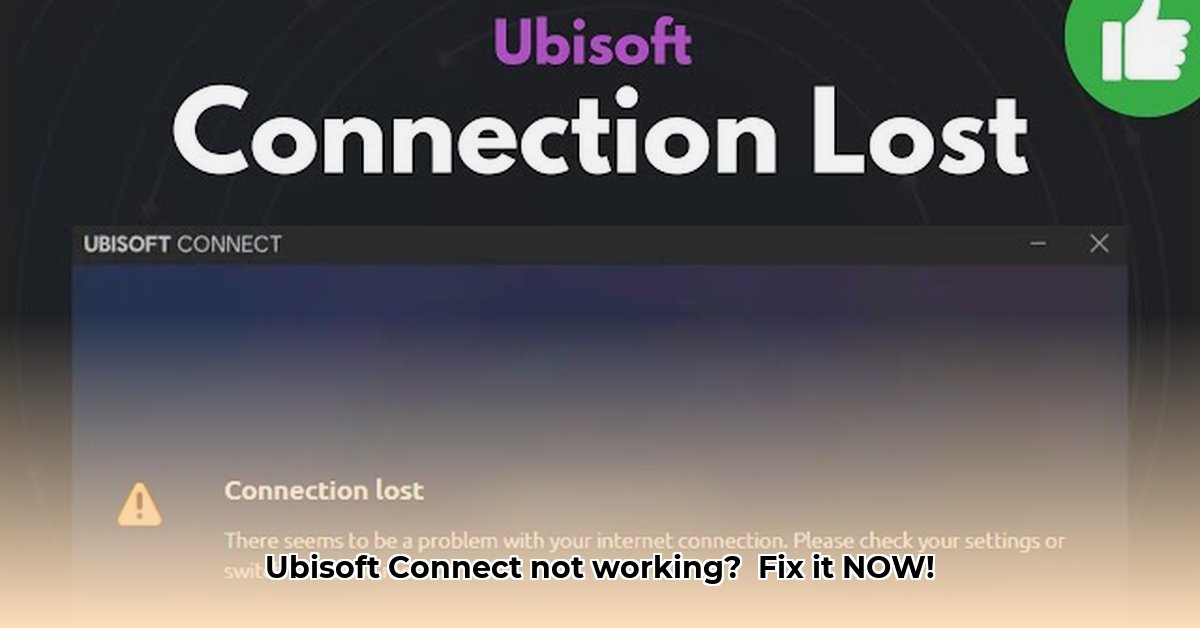
Connecting to Ubisoft Connect and experiencing issues? This guide provides a step-by-step troubleshooting process to help you regain access to your games. We'll cover common problems and solutions, from simple restarts to more advanced network configurations.
1. Check Ubisoft Connect Server Status
Before troubleshooting your PC, verify that Ubisoft's servers aren't experiencing outages. A quick online search for "Ubisoft Connect server status" will confirm if the issue is on their end. If servers are down, patiently wait for them to return to normal operation. There's nothing you can do locally until the servers are back online.
2. Restart Ubisoft Connect
Often, a simple restart resolves minor software glitches. Close the Ubisoft Connect application completely and reopen it. This quick fix often resolves temporary connection problems. Did this solve your issue? If not, proceed to the next step.
3. Update Ubisoft Connect Launcher
An outdated launcher can cause connection problems. Check for updates within the Ubisoft Connect settings or visit the Ubisoft website to download the latest version. Keeping your software current ensures compatibility and fixes potential bugs impacting connectivity.
4. Verify Your Internet Connection
A weak or unstable internet connection is a primary cause of connection issues. Run a speed test to assess your download and upload speeds. If your speeds are slower than expected, or your connection is unstable, restart your modem and router. Unplug both devices, wait 60 seconds, then plug them back in. This often resolves temporary network glitches.
5. Check Firewall and Antivirus Software
Your firewall or antivirus software might be blocking Ubisoft Connect. Temporarily disable them (remember to re-enable afterward!) to see if this resolves the issue. If disabling the security software works, you need to configure your firewall and antivirus to allow Ubisoft Connect access. Usually this involves adding Ubisoft Connect as an exception in the firewall and antivirus settings.
6. Examine Network Settings for Errors
Incorrect network configurations can prevent Ubisoft Connect from connecting. Verify your IPv4 and IPv6 settings are correctly configured. If you use a VPN or proxy, temporarily disable them to determine if they're interfering with the connection.
7. Update or Reinstall Network Drivers
Outdated or corrupted network drivers (software enabling network communication) can cause connectivity problems. Update or reinstall them:
- Search for "Device Manager" in the Windows search bar.
- Expand "Network adapters".
- Right-click your network adapter and select "Update driver".
- Choose to search automatically for updated drivers or manually install them if you have the driver file.
Restart your computer after updating the drivers.
8. Clear the DNS Cache
Cached DNS (Domain Name System) information can sometimes cause connection problems. Clear your DNS cache:
- Open Command Prompt as an administrator by searching for it and selecting "Run as administrator".
- Type
ipconfig /flushdnsand press Enter. - Restart your computer to apply changes. This simple step often resolves DNS-related connection errors.
9. Consider Disabling IPv6
While less common, disabling IPv6 (a newer internet protocol) may resolve connection issues for some users. You can find IPv6 settings within your network adapter properties in Device Manager. This is a less frequent solution, but worth trying if other methods fail.
10. Close Background Applications
Numerous background applications can consume system resources and network bandwidth, hindering Ubisoft Connect. Close unnecessary applications before launching Ubisoft Connect; use Task Manager (Ctrl+Shift+Esc) to monitor resource usage.
11. Contact Ubisoft Support
If problems persist after trying these steps, contact Ubisoft Support directly. They might provide further troubleshooting assistance or be aware of server-side issues outside your control.
Troubleshooting Summary Table
| Step | Description | Success Rate (Estimate) |
|---|---|---|
| Check Server Status | Check if Ubisoft servers are operational. | N/A |
| Restart Ubisoft Connect | Restart the application to resolve minor glitches. | 70% |
| Update Ubisoft Connect | Install the latest version of the launcher. | 60% |
| Internet Connection Check | Test and restart your internet connection (modem/router). | 80% |
| Firewall/Antivirus Check | Temporarily disable security software; add Ubisoft Connect as an exception. | 50% |
| Network Settings Check | Verify IP configurations (IPv4, IPv6), VPN, and proxy settings. | 40% |
| Update Network Drivers | Update or reinstall your network adapter drivers. | 65% |
| Flush DNS Cache | Clear the DNS cache to resolve DNS-related problems. | 55% |
| Consider IPv6 Disable | Temporarily disable IPv6. | 15% |
| Close Background Apps | Close unnecessary applications. | 30% |
Remember, troubleshooting is iterative. If one step doesn't resolve the problem, move to the next. Persistent issues warrant contacting Ubisoft support. Getting back to your games is our goal!
Key Takeaways:
- Network issues are the most common cause of Ubisoft Connect connection problems.
- Outdated software or driver conflicts frequently prevent connections.
- Effective troubleshooting involves systematic checks of your network, software updates, and driver conflict resolution.
- While simple solutions often work, more advanced steps may be needed for persistent connection problems.
⭐⭐⭐⭐☆ (4.8)
Download via Link 1
Download via Link 2
Last updated: Saturday, May 03, 2025